
Introduction
R programming is widely used in statistics, data analysis, bioinformatics, and scientific research. Researchers and students use R to perform statistical tests, analyze experimental data, and create publication-quality graphs. However, writing and managing R code directly in a command-line interface can be challenging, especially for beginners.
An Integrated Development Environment (IDE) for R programming provides a convenient workspace where users can write, execute, debug, and manage R programs efficiently. RStudio is one of the most popular IDEs used by students, researchers, statisticians, and data scientists.
This article explains the definition, components, working principles, features, and practical applications of an IDE for R programming.
1. Definition of Integrated Development Environment
An Integrated Development Environment (IDE) is a software application that combines several programming tools into a single graphical interface. It helps users develop, execute, test, and manage computer programs without switching between multiple applications.
In R programming, an IDE provides an organized environment for writing R scripts, executing commands, importing datasets, analyzing information, and visualizing results.
For example, RStudio is an IDE designed specifically for R and supports statistical computing, data visualization, and reproducible research.
2. Concept of RStudio IDE
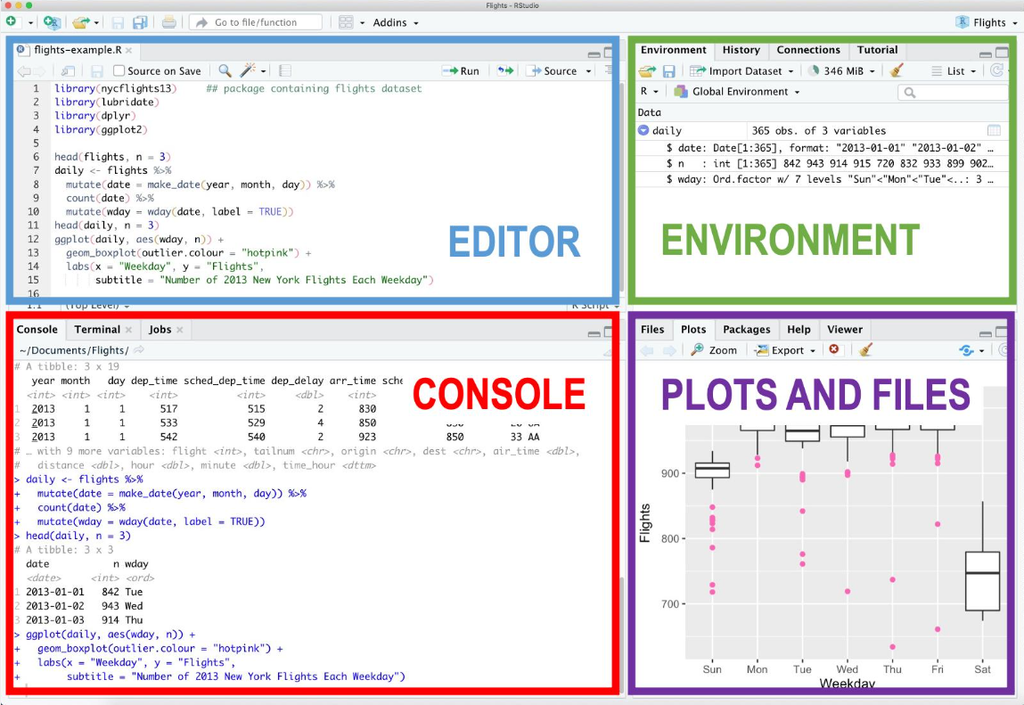
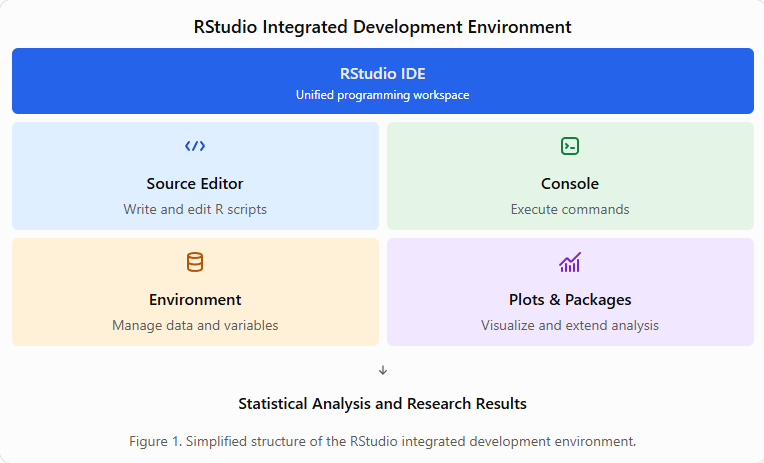
RStudio is an open-source integrated development environment developed to simplify R programming. It provides a graphical workspace that integrates the R console, source editor, environment, file manager, plots, and package management tools.
The main concept of RStudio is to make programming easier by combining coding, statistical analysis, and visualization in one interface.
Major Components of RStudio
- Source Editor – Used to write, edit, and save R scripts.
- Console – Executes R commands and displays output.
- Environment – Displays datasets, variables, and objects stored in memory.
- Files – Helps users navigate files and folders.
- Plots – Displays graphical results generated using R.
- Packages – Installs and manages additional R libraries.
- Help – Provides documentation for R functions and packages.
3. Step-by-Step Working Procedure
Step 1: Install R and RStudio
First, install the R programming language from the official CRAN website. Next, download and install RStudio Desktop.
R provides the computational engine, while RStudio provides the graphical interface for working with R.
Step 2: Open RStudio
After installation, open RStudio. The main interface contains four primary panes: Source, Console, Environment/History, and Files/Plots/Packages/Help.
Step 3: Create a New R Script
Select File → New File → R Script.
A blank editor window will appear where users can write their R programs.
Step 4: Write R Commands
Enter the following example:
# Basic R programming example

x <- c(10, 20, 30, 40, 50)

# Calculate mean
mean(x)

# Calculate standard deviation
sd(x)

# Create a bar graph
barplot(x,
        main = "Sample Data",
        xlab = "Observations",
        ylab = "Values",
        col = "skyblue")
Step 5: Execute the Program
Select the required code and click Run, or use Ctrl + Enter to execute the current line or selection.
The output will appear in the Console, while the bar graph will be displayed in the Plots pane.
Step 6: Save the Script
Save the program with an .R extension, such as sample_analysis.R. This allows users to edit and reuse the code in future analyses.
4. Practical Example: Statistical Analysis Using RStudio
Consider a researcher measuring the growth of five plant samples.
| Sample | Plant Growth (cm) |
|---|---|
| 1 | 10 |
| 2 | 12 |
| 3 | 15 |
| 4 | 18 |
| 5 | 20 |
| Mean | 15.0 |
R code:
growth <- c(10, 12, 15, 18, 20)

mean(growth)
sd(growth)
summary(growth)

boxplot(growth,
        main = "Plant Growth",
        ylab = "Growth (cm)",
        col = "lightgreen")
The researcher can calculate descriptive statistics and generate a boxplot without using separate statistical software.
5. Figure: Working Structure of RStudio IDE
6. Advantages of an IDE for R Programming
| Feature | Advantage |
|---|---|
| Script Editor | Organizes and simplifies coding |
| Code Completion | Reduces typing errors |
| Console | Provides immediate execution |
| Environment | Manages datasets and variables |
| Plot Viewer | Displays statistical graphs |
| Package Manager | Supports additional statistical functions |
| Debugging | Helps identify programming errors |
| Project Management | Organizes research files |
7. Applications in Biostatistics and Research
An integrated development environment for R programming is particularly useful in biological and medical research.
Major applications include:
- Descriptive statistics: Mean, median, standard deviation, and variance.
- Hypothesis testing: t-test, chi-square test, and nonparametric tests.
- Analysis of variance: One-way, two-way, and factorial ANOVA.
- Data visualization: Bar charts, boxplots, scatterplots, and histograms.
- Bioinformatics: Biological data processing and statistical analysis.
- Research reporting: Reproducible analysis and publication-ready figures.
These features make RStudio a useful platform for academic research, laboratory investigations, and scientific data analysis.
Conclusion
An Integrated Development Environment for R programming provides a comprehensive workspace for coding, statistical computation, data management, and visualization. RStudio simplifies the programming process by integrating essential tools into a single graphical interface.
For students, researchers, and biostatisticians, learning RStudio is an important step toward performing efficient statistical analysis and producing reliable scientific results. Its flexibility, extensive package ecosystem, and reproducibility features make it a valuable tool in modern biological and statistical research.